

Introduction
Ever wake up at 3:17 a.m. remembering you forgot to send an email, book a dentist visit, reply to your boss, and somehow buy oat milk? Welcome to modern work life.
Busy professionals are carrying full calendars, endless notifications, and task lists that breed in the dark. That mental clutter drains energy. The good news? You do not need a superhuman memory. You need a better system.
If you want the bigger picture beyond GTD, here’s how to build a planning system that actually works for busy professionals.
That is exactly where the GTD Method for Busy Professionals comes in.
Created by productivity expert David Allen, Getting Things Done is a practical framework that helps you capture, organize, and complete tasks without feeling buried alive by sticky notes and guilt.
I have used GTD during packed weeks with meetings stacked like pancakes, and it works because it is simple: move tasks out of your head and into a trusted system.
This guide will walk you through the 5 GTD steps, how to use them as a busy professional, common mistakes, best apps in 2026, and how GTD compares with other methods.

What Is the GTD Method?
The GTD method stands for Getting Things Done. It is a productivity system designed to help you track commitments, tasks, projects, and ideas in one place.
Instead of trying to remember everything, you build a workflow that handles it for you.
The famous GTD goal is to achieve a mind like water — calm, clear, and ready to respond.
Who Created the GTD Method?
The method was created by David Allen, who published the bestselling book Getting Things Done. His approach became popular with executives, creatives, entrepreneurs, and overwhelmed humans everywhere.
GTD Method for Busy Professionals: The 5 Steps of GTD
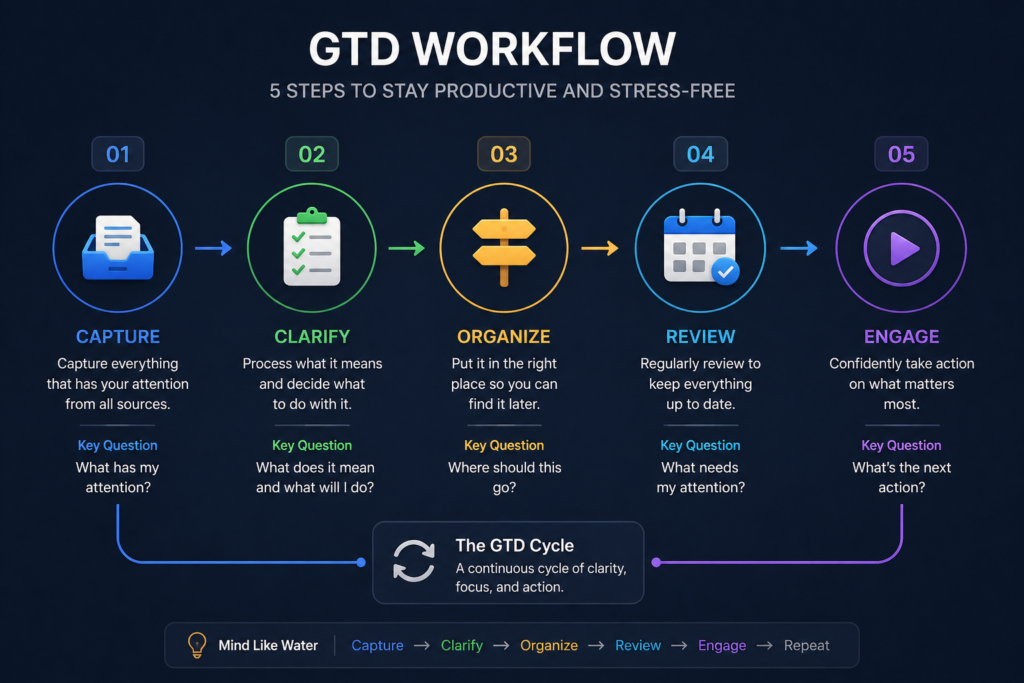
The core GTD workflow has five steps:
| Step | What It Means | Why It Matters |
|---|---|---|
| Capture | Collect everything that has your attention | Clears mental clutter |
| Clarify | Decide what each item means | Stops vague tasks |
| Organize | Put tasks where they belong | Creates order |
| Reflect | Review regularly | Keeps system trusted |
| Engage | Do the right task now | Real progress |
Step 1: Capture Tasks Like a Pro
How do you capture tasks in GTD?
Simple: write everything down the moment it appears.
Use a single inbox or a few trusted capture tools:
- Notes app
n- Voice memo while driving - Pocket notebook
- Email yourself
- Task app inbox
Examples:
- Renew passport
- Finish Q3 report
- Call plumber
- Idea for side business
- Buy birthday gift
Your brain should create ideas, not store them like an overcrowded attic.
GTD Inbox Zero Tip
Empty your inbox daily or weekly by processing items. A capture list is temporary storage, not a museum.
Step 2: Clarify Every Item
What is the clarify step in GTD?
This is where many people skip the line and later regret it.
Ask:
- What is this?
- Is action required?
- What is the very next action?
If no action is needed:
- Trash it
- File it for reference
- Put it in Someday/Maybe
If action is needed:
- If it takes under two minutes, do it now.
- Delegate it.
- Defer it into your task system.
What Is the Two-Minute Rule in GTD?
If a task takes less than two minutes, do it immediately.
Examples:
- Reply yes to an email
- Confirm appointment
- Upload one file
This tiny rule prevents micro-tasks from becoming emotional support clutter.
Step 3: Organize Next Actions Clearly
How to organize next actions in GTD?
Do not write vague tasks like:
- Marketing
- Taxes
- Website
Those are not tasks. Those are stress nouns.
Use action language:
- Email Sarah for campaign assets
- Gather tax receipts from Dropbox
- Update homepage headline
Useful GTD Lists
| List | Purpose |
|---|---|
| Next Actions | Tasks you can do soon |
| Projects | Anything needing 2+ steps |
| Waiting For | Delegated items |
| Someday/Maybe | Ideas for later |
| Calendar | Date-specific commitments |
What Are GTD Contexts?
Contexts help group tasks by situation:
- @Computer
- @Calls
- @Errands
- @Office
- @Home
If you have 10 free minutes between meetings, a @Calls list becomes gold.
Step 4: Reflect With a Weekly Review
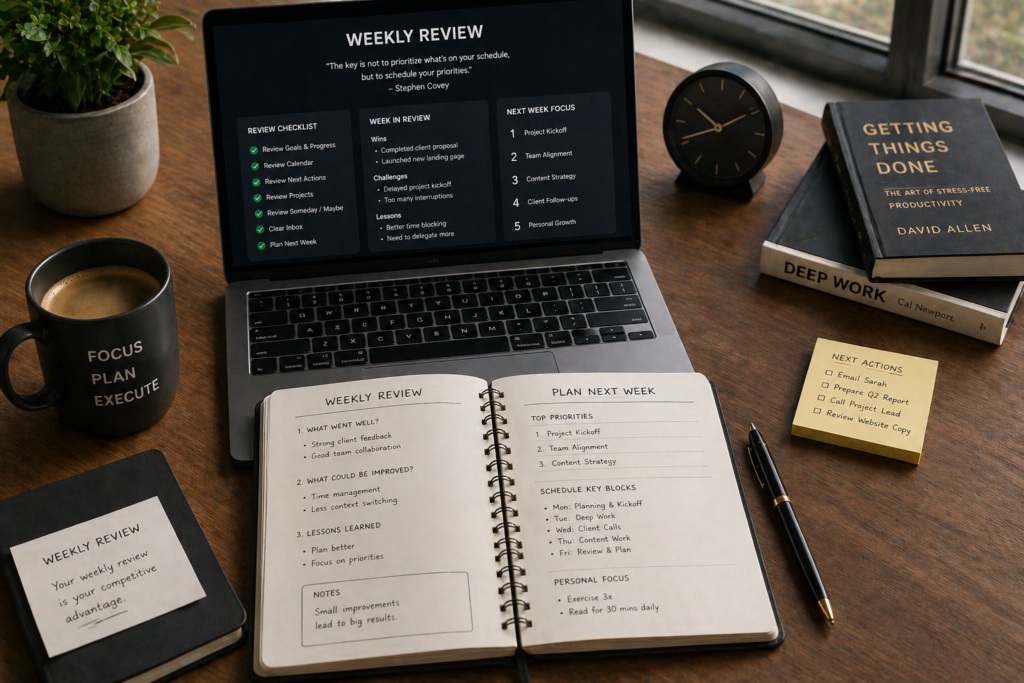
What is a GTD weekly review?
It is your reset ritual.
Once a week, review:
- Inbox items
- Active projects
n- Waiting for list - Calendar past and upcoming
- Someday/Maybe ideas
- Priorities for next week
This is the habit that keeps GTD alive. Without review, any system becomes a digital junk drawer.
My Honest Advice
Put your review on Friday afternoon or Sunday evening. Protect it like a meeting with your future self.
Step 5: Engage and Actually Do the Work
What does engage mean in GTD?
It means choosing what to do right now based on:
- Time available
- Energy level
- Context
- Priority
Some days you can tackle strategy work. Other days you are running on fumes and should answer admin emails. GTD respects reality.
How GTD Reduces Stress
How does GTD reduce stress?
Because open loops create anxiety.
When tasks float in your head, your brain keeps reminding you. Loudly. At random times.
GTD reduces stress by:
- Creating one trusted system
- Turning vague worries into next actions
- Showing what matters now
- Preventing forgotten commitments
- Giving closure through reviews
That feeling of “I know where everything is” is underrated luxury.
GTD for Busy Professionals in the USA
If your days are packed with meetings, Slack messages, childcare, errands, and 47 browser tabs, keep GTD lean.
Simple Setup
- One capture inbox
- One task manager
- Calendar for real appointments only
- Weekly review every Friday
- Max 3 priority tasks daily
Customize GTD Workflow for Real Life
You do not need a perfect setup. You need one you will use.
If color tags help, use them. If paper works better, use paper. If apps stress you out, simplify.
Best GTD Apps 2026
| App | Best For | Platform |
|---|---|---|
| OmniFocus 4 | Power users | Apple |
| Todoist | Most professionals | All devices |
| Nirvana | Pure GTD lovers | Web/mobile |
| Things 3 | Beautiful simplicity | Apple |
| TickTick | GTD + Pomodoro | All devices |
| Notion | Custom systems | All devices |
| Microsoft To Do | Free simplicity | Microsoft ecosystem |
If you want broader tools beyond GTD-specific apps, here are the best planner apps for busy schedules in 2026.
If you are new, start with Todoist or Microsoft To Do.
If you love detail and structure, try OmniFocus 4.
GTD vs Other Methods Like Pomodoro or Time Blocking
| Method | Best For | Weakness |
|---|---|---|
| GTD | Managing many commitments | Needs weekly review |
| Pomodoro | Focus sessions | Not a full system |
| Time Blocking | Calendar control | Can feel rigid |
| Eisenhower Matrix | Prioritizing | Limited task management |
GTD vs Time Blocking
Use GTD to know what matters.
Use time blocking to decide when to do it.
They work beautifully together.
GTD for Teams or Beginners
For Beginners
Start with just three lists:
- Inbox
- Next Actions
- Projects
That is enough.
For Teams
Use GTD personally, then pair it with project tools like ClickUp, Asana, or Trello for shared work.
Common GTD Mistakes to Avoid
- Capturing tasks but never clarifying them
- Too many lists nobody checks
- Skipping weekly reviews
- Writing vague tasks
- Using 5 apps for one life
- Building the perfect system instead of doing work
Productivity procrastination wears nice shoes.
7-Day GTD Starter Plan
| Day | Action |
|---|---|
| 1 | Capture everything on your mind |
| 2 | Clarify each item |
| 3 | Build lists |
| 4 | Define projects |
| 5 | Use contexts |
| 6 | Work from next actions |
| 7 | Do first weekly review |
Final Thoughts: Calm Beats Chaos
The Getting Things Done system is not about becoming a robot. It is about becoming less distracted, less stressed, and more present.
You do not need more hustle. You need fewer open loops.
Start small today:
- Capture 10 things on your mind.
- Turn each into a next action.
- Review weekly.
That is how busy professionals win quietly.
What part of GTD feels hardest for you right now — capture, review, or follow-through? Start there.